
The Device Licenses Management tab allows you to specify whether or not licenses are automatically assigned to a device when the device is added to the Device Catalog. If automatic license assignment is disabled, you can manually bind the license to the device from the Device Catalog.
Click on Inventory under the “Configure” section of the OmniVista Terra Menu, then click on Device List. Select the License view from the Device List view dropdown, as shown below.
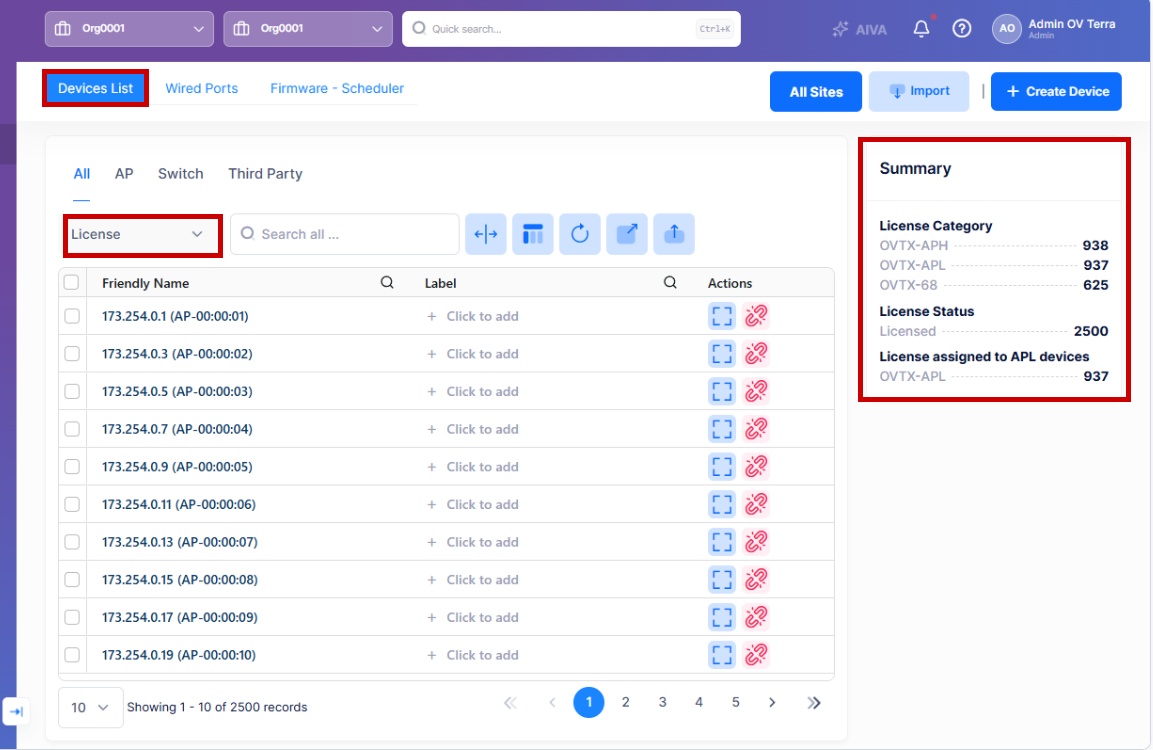
The Summary section displays the following information:
-
License Category - Count of devices per category (e.g., OVTX-APH: 938, OVTX-APL: 937).
-
License Status - Count of devices by license status (e.g., Licensed: 2500).
-
License assigned to APL devices - Display APL device license assignment details.
The Device List tab on the Inventory screen displays a list of devices known to OmniVista Terra. Use this screen to manually bind (assign) or unbind (release) device licenses. Note that you can only unbind device licenses that were manually assigned to the device.
Assign a License to a Device
Use one of the following methods to assign a License to a device:
-
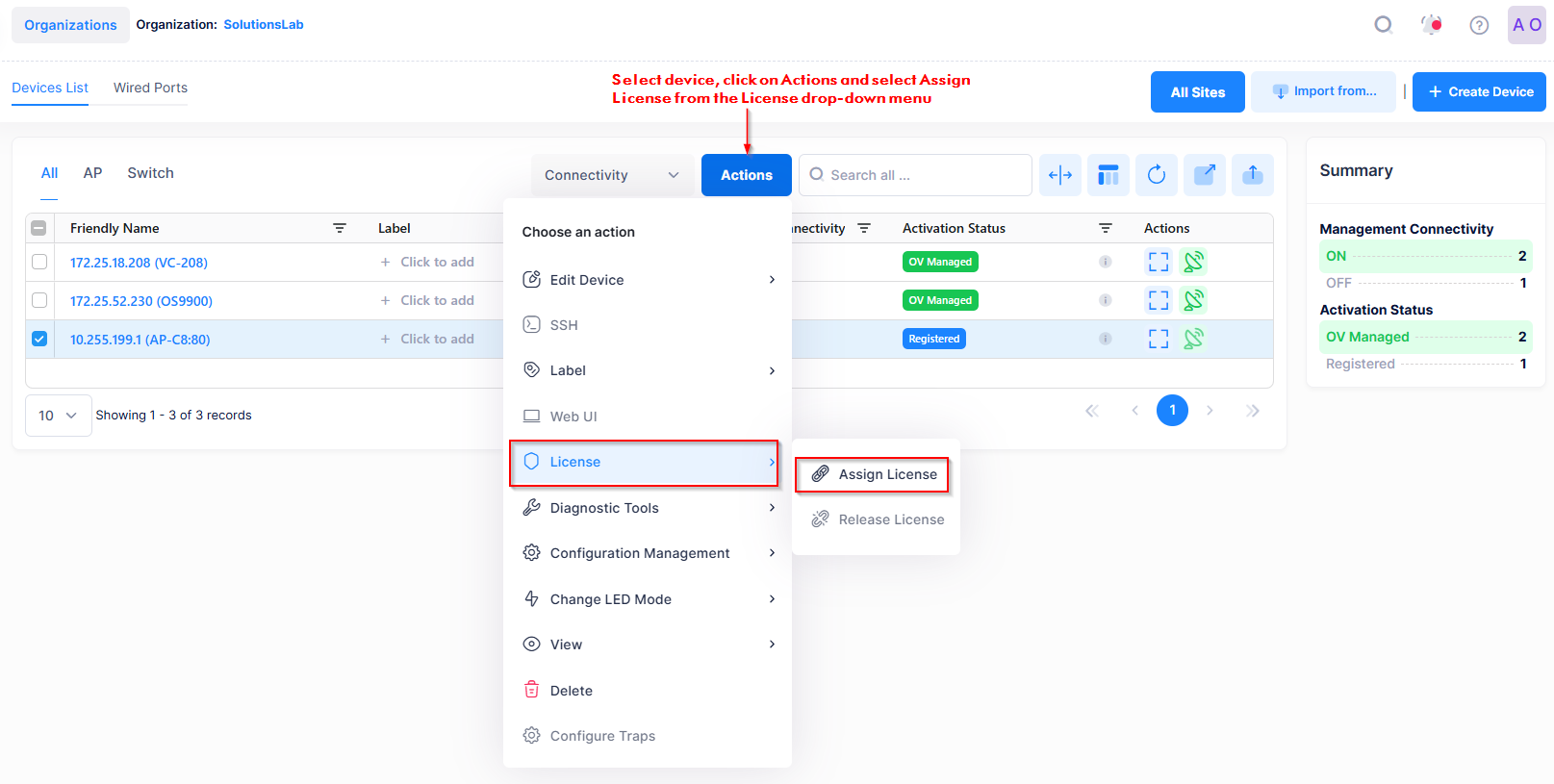
Select the device(s) in the Device List, click on Actions, then select License > Assign License from the drop-down menu.
-
Locate the device you want to assign a license to and click Assign License (green chain-link icon) in the “Actions” column as shown below:
The Assign screen opens. Click on Assign to bind the license to the device(s).
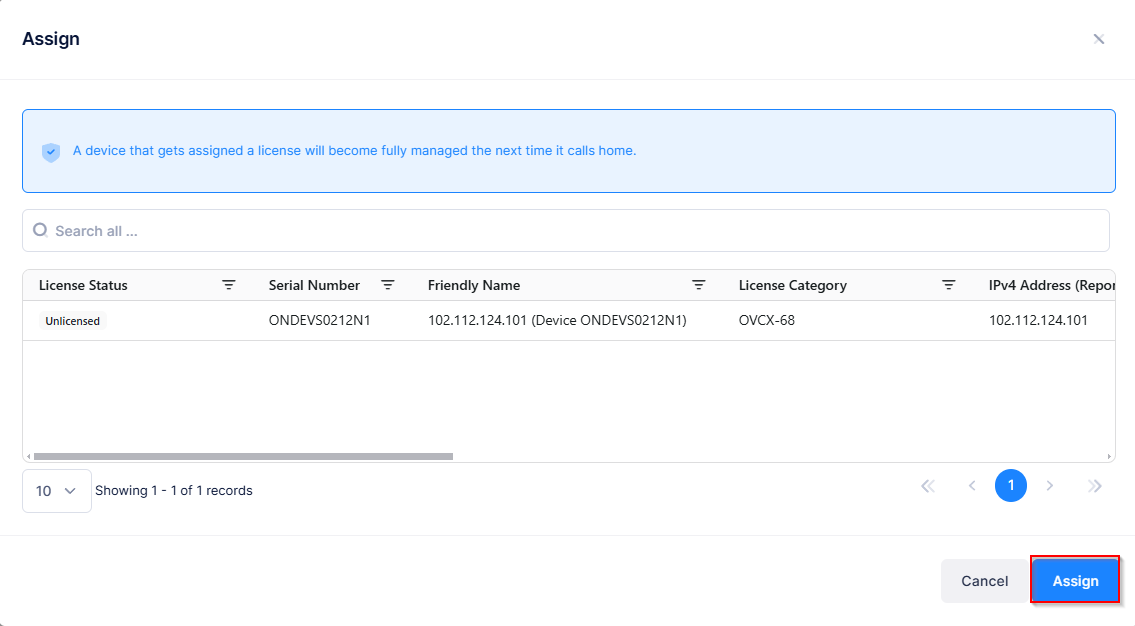
For multiple license assignments, the device is bound to the license after the call home. Once the device is successfully bound to the license, it becomes fully managed during the next call home. If multiple license types exist for the device's category, select the appropriate license and click Assign to confirm.
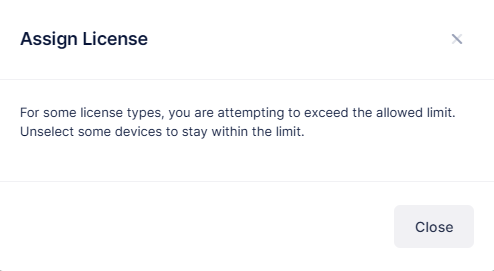
If the number of licenses has reached the limit for the license type, the following message appears:
-
If no licenses are currently available to be associated with a device, you can import new licenses from the License Management screen or the Organization's License Status card on the Home Dashboard. If your subscription has run out of licenses for a specific category, contact your reseller to order additional licenses or add-ons.
-
If you get the notification "For some license types, you are attempting to exceed the allowed limit", it means you are trying to assign more licenses than the maximum count for a license category. Unselect some devices to stay within the limit, or import additional licenses through the add-on process.
-
The Assign License option appears only for devices that meet all of the following criteria:
-
The device is not a Private 5G or PBX device.
-
You have the Organization Administrator role for the device's site.
-
The organization uses a Paid subscription (not a trial), and the device is in a state that allows license assignment.
-
When APL licenses are exhausted:
If the device requires an APL license but none are available, the system offers the option to use an APH license instead. Check the ‘Allow APH license to be used for APs that require an APL license’ checkbox to proceed with an APH license.
For “Allow users to manually assign an APH license to manage an AP that requires an APL license,” the prerequisite is that Auto Assignment is disabled in the Device License section.
Release License
Use one of the following methods to Release a License from a device:
-
Select the device(s) in the Device Catalog list, click on Actions, then select License > Release License from the drop-down menu.
-
Locate the device from which you want to release the license and click on the Release License (red disconnect icon) in the Actions column as shown below:
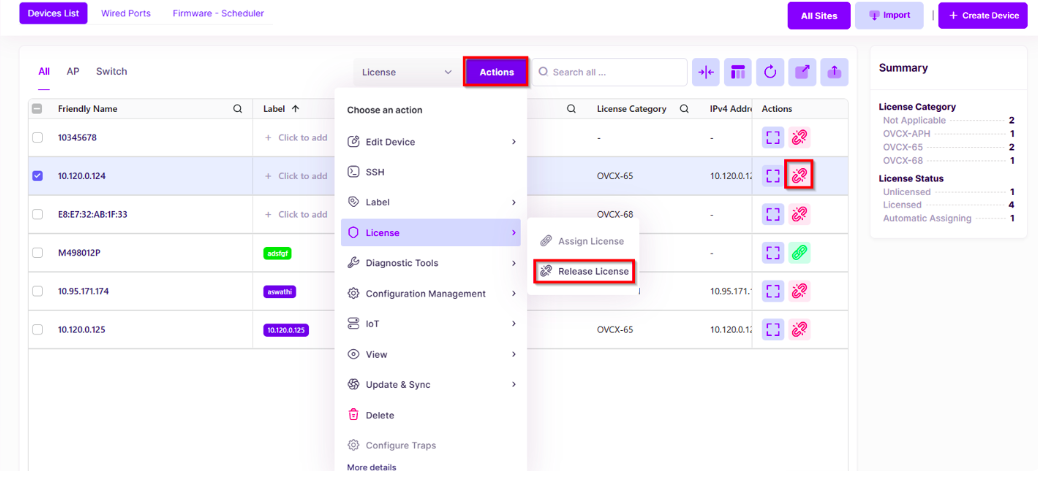
The Release screen opens. Click on Release to unbind the licenses from the device(s).
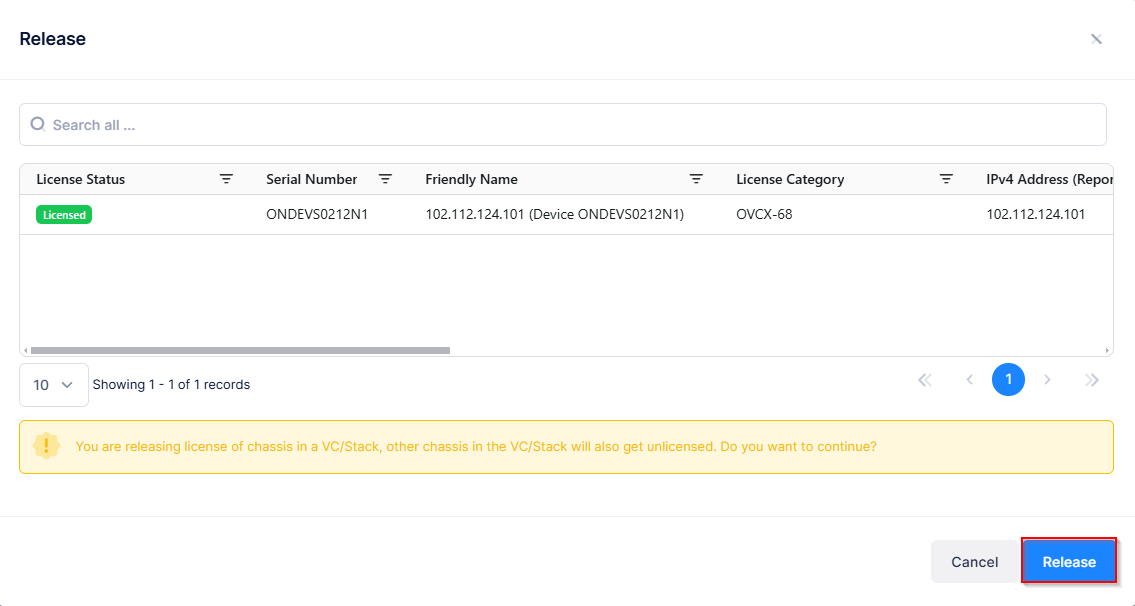
A confirmation message appears:
-
For AP devices: "On release of license, APs might lose their OmniVista Terra provided configuration if they join a Cluster of APs."
-
For switch devices in a VC/Stack: "You are releasing license of chassis in a VC/Stack, other chassis in the VC/Stack will also get unlicensed. Do you want to continue?
Click Release to confirm. After release, the device status changes to Unlicensed and the license returns to the available count for that category.
Consider the following when releasing device licenses:
-
-
When a device becomes unlicensed (license is released) or the license grace period ends, the unlicensed device is no longer manageable by OmniVista Terra and the device activation status moves to “Register”. However, all the device data known to applications (such as Device Catalog, Topology, Network Analytics, etc.) is still retained by OmniVista Terra and displayed in the UI.
-
All known device data is only removed from the OmniVista Terra UI when the device is deleted from the Device Catalog.
-
When you release a license assignment from an AP device, the device does not immediately reboot to reset the AP Management Mode. Instead, The AP remains managed by OmniVista Terra 10 until the next call home (15 minutes by default), when the AP Management Mode is changed to Cluster. Once in Cluster mode, license assignment is required again to manage for OmniVista Terra to manage the AP.
-