
The Inventory application is used to manage OmniVista Terra device inventory. This includes adding, editing, or deleting network devices from the inventory. To access the Inventory application, click Inventory on the OmniVista Terra Menu.
There are certain prerequisites that you must first verify and/or configure for devices to communicate with OmniVista Terra.
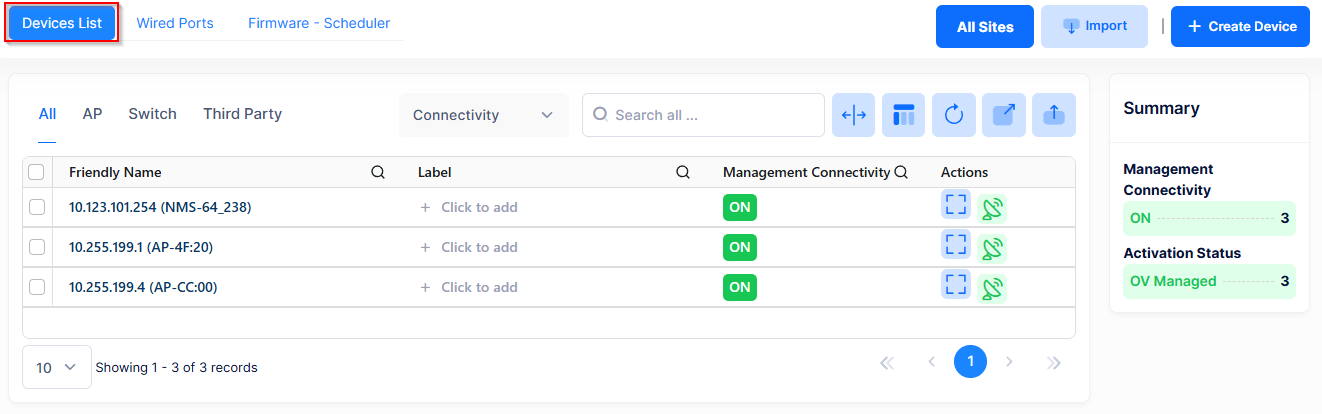
The Inventory screen provides the following applications that are used for device onboarding and management:
-
Device List - Displays devices known to OmniVista Terra. Use the Device List to add, edit, remove, and license devices for management.
-
Wired Ports - Shows wired port details for Switch and AP devices. You can administratively enable or disable port status and view UNP clients connected to a port.
-
Firmware Scheduler
-
Image Versions - Displays a list of all of the software image files stored in OmniVista. Use these files to select the software version when upgrading your network devices. If a software version image file is not included in this list, you can download the necessary image files from the Technical Support website and upload the files into OmniVista.
-
Scheduled Upgrades - Schedules automatic upgrades to specific network devices during set time windows (for example, non-business hours) to ensure minimal network disruption.
-
Configuration Backups - Initiates and manages backups of switch configuration files.
-
U-Boot Upgrade - Allows you to update the U-Boot firmware on your AOS network switches directly from the management interface.
-