
To manage Remote Access Points from OmniVista Terra, you must first create a RAP Organization in OmniVista Cirrus. This type of Organization is different from other Organizations used for managing AP devices in that you can only manage RAPs; no other APs (non-RAPs) are managed from a RAP Organization. In addition to creating a new RAP Organization, you can convert an existing non-RAP Organization to a RAP Organization (click here for details).
The steps to create a RAP Organization are similar to those that are used to create any other Organization. For example:
-
On the OmniVista Cirrus MSP Dashboard, click on Create Organization to bring up the Create Organization form.
-
Enter a name for the Organization, select Region and Timezone, upload an optional Organization Image from your computer, optionally change the password policy (defaults to strong password rules). Click on Next.
-
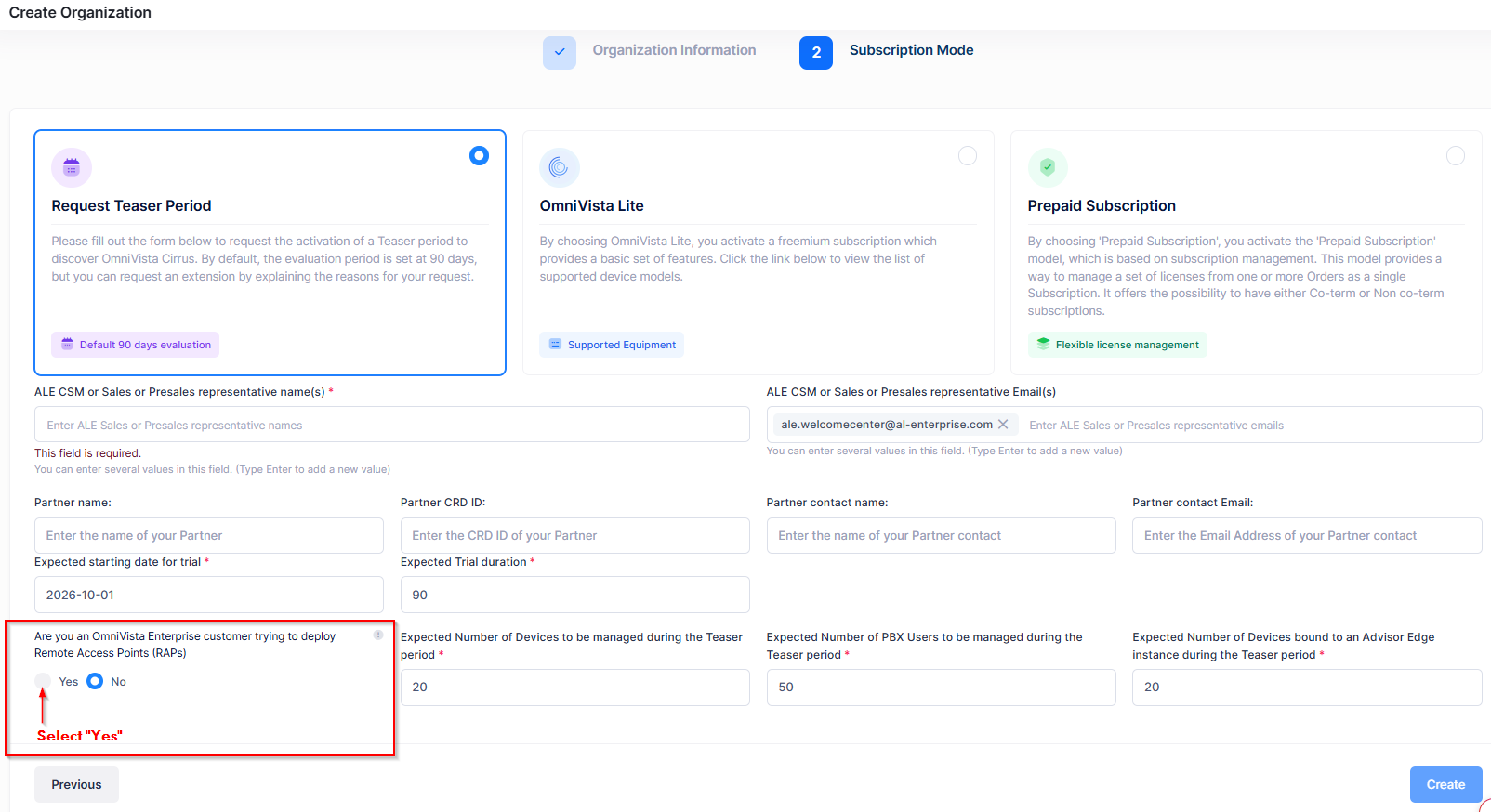
Select the Request Teaser Period Subscription Mode, and Yes to indicate that you want to manage RAP devices in the Organization.
-
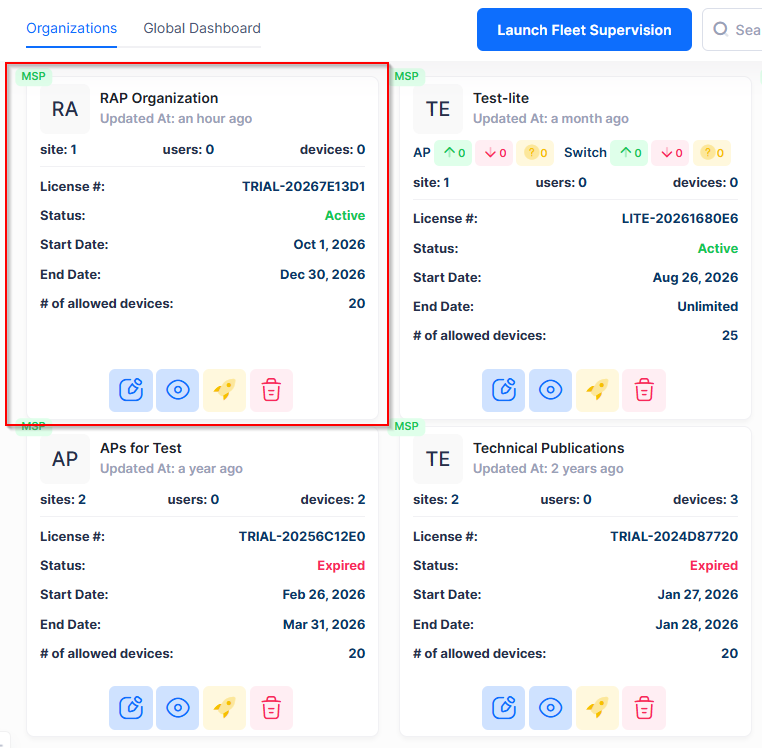
Click on Create. The Organization is created and appears on the MSP Dashboard.
-
Access the RAP Organization and configure the Management VPN Settings.
Converting a Non-RAP Organization to a RAP Organization
If you want to change a non-RAP Organization to a RAP Organization, you can change the Organization type before you add any devices.
If you have already added devices to your non-RAP Organization, you cannot convert the Organization to a RAP Organization.
To convert a non-RAP Organization to a RAP Organization, complete the following steps:
-
Make sure that no devices were added to the Device List of the non-RAP Organization.
-
Access the License Management screen for the non-RAP Organization and click on Request an Update.
-
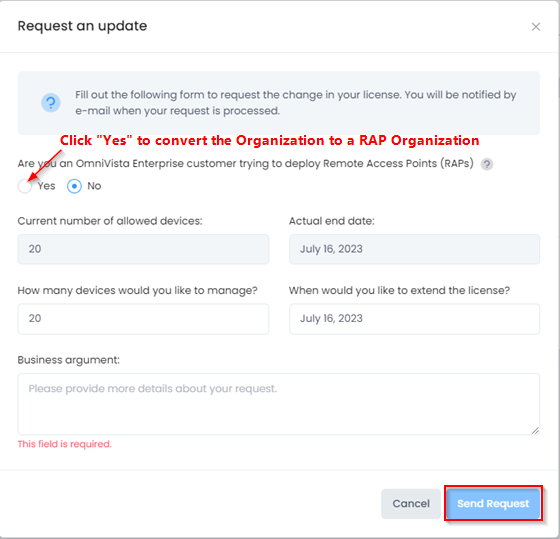
On the Request an Update screen, select Yes for the Are you an OmniVista Enterprise customer trying to deploy Remote Access Points (RAPs)? option. Note that this option is not available if devices have already been added to the Device List of the non-RAP Organization.
-
Click on Send Request to submit your request to update the Organization to a RAP Organization.
Your request is sent to the OmniVista Cirrus Product Line Manager for approval. You will receive an email notification when the request is approved. Once it is approved, you will have access to the RAP Organization.